Create Custom Models
Getting Started
To export your models for Banana Shooter’s map editor, you will need to install Unity with the Banana Shooter Software Development Kit imported (BS SDK)
Full tutorial here:
How to setup your model in Unity
First, we need to set everything up in Unity, so we can export models as source.unity3d files, which the game can read.
Create a folder in the Asset directory called
Resources(This isn’t necessary, but it’s highly recommended for organization)You can put all the models you wish to export in this folder. It is recommended to categorize the folder contents, such as putting models into an
Asset\Resources\Models\folder and materials in anAsset\Resources\Materials\folder, and so onAfter importing the models, drag it into the scene and a GUI will open on the side called the inspector
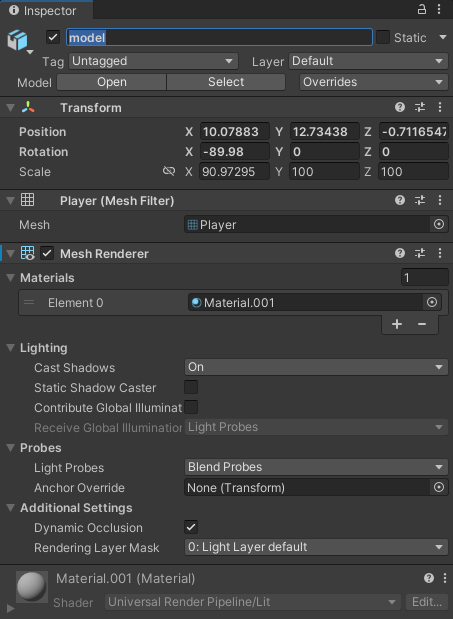
Name the model
modelusing the text box at the top of the inspectorIf your model has a material, make sure to set it by dragging the material from the assets folder onto your model in the scene
Navigate to the
Asset\AssetBundles\sourcefolder and drag your model from the Hierarchy list into the source folder

This will open a propmt. Select Original Prefab
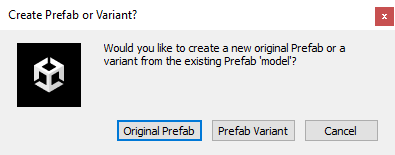
Your project should now look something like this, and you are ready to export
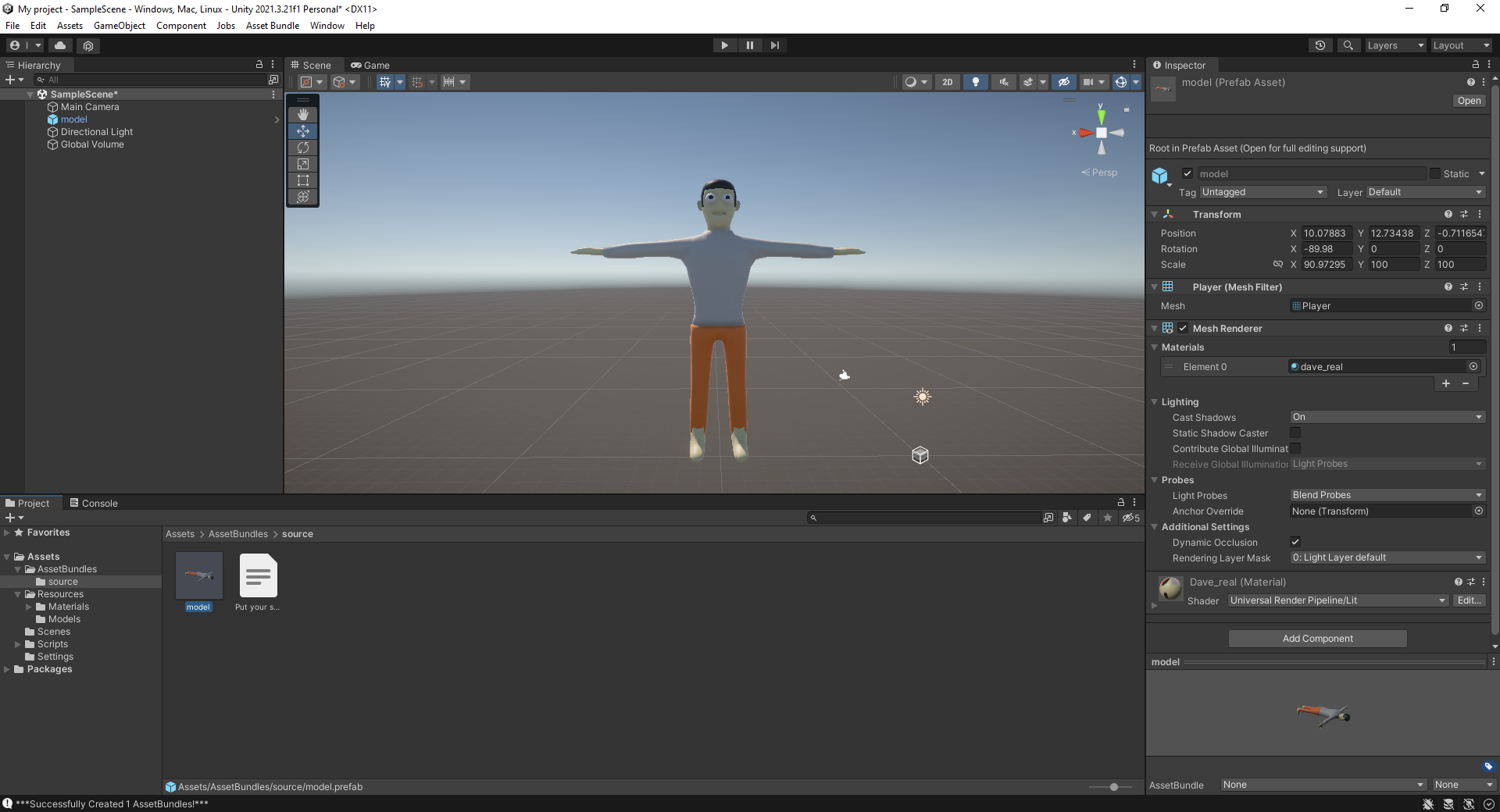
How to export your model
If there are no errors in your Console, then you can export your model
On the top of your screen, navigate to
Asset Bundle > Asset Bundle Creator

Click the
Build Asset Bundlesbutton, you do not have to play with the settings, they’re already setup and messing with the settings might cause some bugsAfter building your asset bundles, there should be a button under Bundle Versions that will look similar to below

Press this button and then
Show in explorerto open it in File ExplorerIf you see a file named
source.unity3dthen it has been successfully exported and you’re ready to import it into Banana Shooter: How To Import Custom Models