Import Custom Models
Locating Map Files
First you need to save the map you intend to import a model to. To do this, in the map editor press
File > Save Asto save as a new map orFile > Saveif you’ve already saved the map beforeNext you’re going to have to locate your map in File Explorer. Start by opening your game files [?] then navigate to
Banana Shooter_Data\maps\. If you saved the map properly you’ll find a folder called{yourMapName}{randomNumbersAndLetters}_model, like below
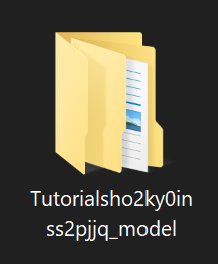
The name structure is as follows
Tutorialis the name of the map
sho2ky0inss2pjjqare random numbers and letters used to uniquely identify the map, so you can save mulitple maps with the same name
_modelmeans this folder is a model folder. Other suffixes include_audiofor custom Audio Sources and_texturefor custom Textures
Custom Model Folder Structure
Custom models each have their own folders containing 3 files
Directory Name– This is the name of the folder your model is stored in. It is not the name of the model in the map editorconfig.json– This file contains the name of the model used in the map editorpreview.png– This file is the image for the model using in the map editor. It is not needed, but will make it easier to know what the model issource.unity3d– This is the actual model exported from unity using the BS SDK (How To Create Custom Models) or downloaded online
Importing Models
Now that you know where you’re putting your model and understand the folder structure, this part is really easy
Create a new folder in the
_modelfolder of choice and name it what you wantNavigate back to your Banana Shooter game files and go to
src\pre-custom-models\Daniel Testing Map Editorand copy the config.json file to your model folder. You can edit it to change the name of the model in the map editorCopy your
source.unity3dmodel into the mod folder. Do not change the file nameOptionally, you can make a
preview.pngimage to show up in the editor, to make it easier to identify the model
Now when you open the map in the map editor, you should find the model in the model category